

Is your computer not recognizing the printer? How to solve the most frequent errors
Find out why a printer may appear offline, block documents, or disappear from your computer
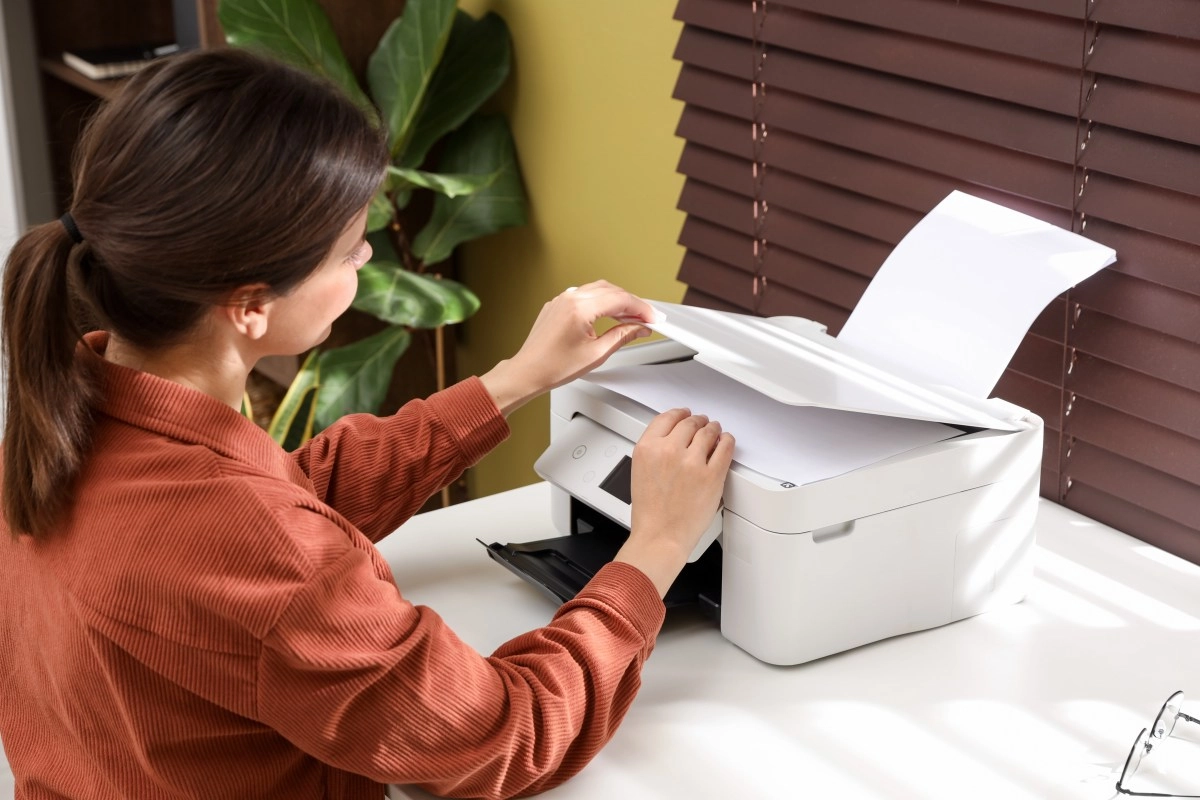

Connecting a computer to a printer seems like a simple task until the dreaded “offline” message appears, the document freezes in the queue, or the device simply disappears from the list. The good news is that the five most common errors have a solution and, in many cases, are corrected in a few minutes.
Printer does not appear on computer
This is the classic problem that makes it feel like the printer has become invisible. In reality, it usually happens because the computer and the printer are not communicating properly via the USB cable, Wi-Fi network, or Bluetooth.
Before touching on complicated settings, review the basics. Check that the printer is turned on, that it is not displaying error lights, and that the cable is securely connected if you are using a physical connection. A loose, damaged or damaged USB cable connected to a failed port can prevent the system from detecting the device.
In wireless printers, the critical point is the network. The computer and printer must be connected to the same Wi-Fi network. It is common for the computer to be on the usual home network while the printer retains a previous network, a guest network, or a configuration lost after changing the router. Microsoft recommends checking this network match as one of the first steps when faced with a printer that appears offline.
The solution is to enter the printer panel and open the wireless network settings. From there you can confirm the name of the connected network and run the Wi-Fi setup wizard again if necessary. It also helps to restart the router, wait for the signal to recover, and turn the printer back on.
If you work with a Mac, go to System Settings, then Printers and Scanners, and press the button to add a printer. macOS can automatically detect it within the local network. Apple also indicates that if it does not appear, it is worth checking that the manufacturer's software and drivers are up to date.
When listed as offline
The printer is on, has paper, appears connected, but Windows or macOS insists it is “offline.” It is one of those errors that waste time because the problem is not always in the device. Many times this is a temporary poor communication between the operating system, the printer and the router.
Start with a hard reset. Turn off the printer, unplug it from the power for a few seconds, and turn it on again. Do the same with the router if you use Wi-Fi. This maneuver forces all devices to renew their network connection and can eliminate specific failures that were trapped in the background.
Then check that the Use printer offline option is not activated. In Windows, open Settings, go to Bluetooth & devices, select Printers & Scanners, choose your device, and open the print queue. From the printer menu you can check if offline mode was selected by mistake.
It is also important to set it as the default printer. If you have an old printer, a virtual one for saving PDFs, or a device installed twice, your document may be traveling to the wrong destination. Choosing a default printer avoids that confusion and speeds up the printing process.
For a Wi-Fi printer that disconnects repeatedly, it is worth reserving a fixed IP address from the router settings. This way, the network will always locate the computer at the same address and reduce the cases in which the computer “loses” the printer after a reboot.
Print queue stuck
You send a file to print, you click once, then another, and before you know it there are ten documents waiting in the queue. This error usually appears when a print job becomes corrupted, incomplete, or attempts to process a file that is too large. The result is a digital bottleneck that prevents even the simplest documents from getting out.
The quickest way to recover is to open the print queue and cancel all pending jobs. On Windows, Microsoft indicates that you can do this from the printers section, opening the queue and using the option to cancel all documents.
If the queue does not empty, the next step is to restart the system print service. In Windows it is called Print Spooler and it works as a kind of intermediary that organizes documents before sending them to the printer. When stuck, the printer may appear faulty even though it is working perfectly.
Search for “Services” in Windows, locate Print Spooler, and press Restart. Then try again with a test page or short document. It's best not to send a 200-page PDF or a high-resolution image all at once. First confirm that the channel is free.
On Mac, deleting the printer from the list and adding it again can rebuild the connection when the queue behaves strangely. Do this only after canceling pending jobs, as reinstalling it without clearing the queue can cause the same crash.
The driver is outdated or damaged
Drivers are the bridge between the computer and the printer. Without them, the system may detect the device, but not correctly understand how to print, what size paper to use, how to handle color, or even if it has ink.
This problem usually appears after a major Windows or macOS update, after changing computers, or when a generic driver is installed that does not recognize all the functions of the model. The clearest sign is seeing messages like “driver not available,” printouts with strange characters, or advanced features that disappear.
The solution is to download the latest software from the manufacturer's official website. Avoid dubious download pages and programs that promise to update all drivers with a single click. The correct file must correspond to the exact model of your printer and the version of your operating system.
Apple recommends updating your printing software when you experience printing problems and allows you to review these options from Printers & Scanners. After installing the driver, restart your computer and perform a test print.apple
Paper, ink and internal alerts
Not all connection problems are actually connection problems. A printer may reject a job because it is low on paper, a poorly closed lid, an internal jam, misplaced cartridges, or a pending maintenance alert. The computer receives the lack of response and translates all that chaos into a simple error message.
That's why it's a good idea to look at the printer screen before blaming Wi-Fi. Check for codes, jam icons, critical ink levels, or prompts to confirm paper loading. Carefully remove any wrinkled sheets, close the trays properly, and check that the paper is the size configured on the document.
When the computer is ready again, it prints a test page from the panel itself. If that page comes out well, the printer is working and the focus should return to the computer settings. If it doesn't print from your panel either, the problem is within the device and not the connection.
The key is to go from the simple to the technical. Checking the network, clearing the queue, updating the driver, and addressing physical alerts resolves the vast majority of failures without the need to call technical support.
This news has been tken from authentic news syndicates and agencies and only the wordings has been changed keeping the menaing intact. We have not done personal research yet and do not guarantee the complete genuinity and request you to verify from other sources too.