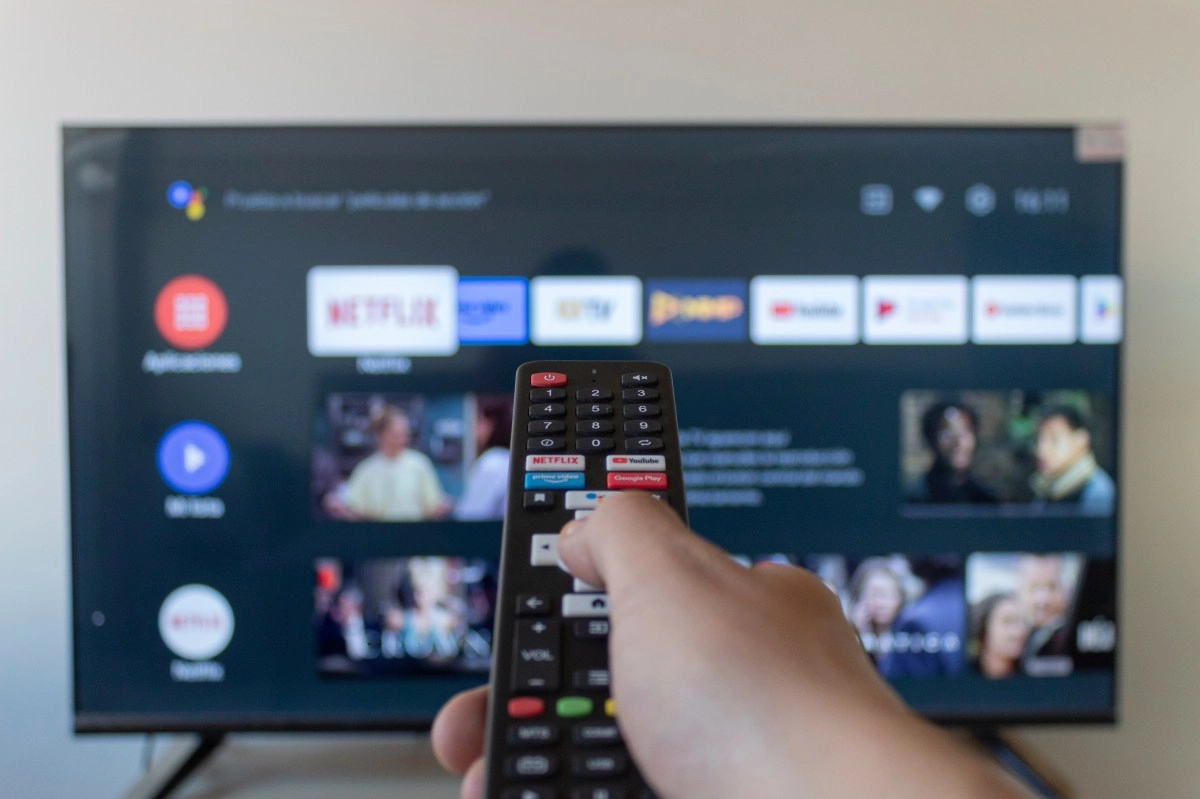

If lately you notice that your TV takes forever to open Netflix or the menu gets stuck when you change apps, the problem is not with your Wi-Fi or the age of the device. The most common cause is much simpler and at the same time very ignored: your Smart TV is saturated with files that you no longer need. Just like cell phones, these televisions have limited storage and every app you install, every video you open and every update you download leaves waste that silently accumulates.
The good news is that fixing this doesn't require being a tech expert. With a few minutes and the right steps, your TV can feel agile again, without having to buy a new model or factory reset it.
Why accumulating junk content takes a toll on your TV
Each app you install stores a amount of temporary data known as a cache, designed to make the app load faster the next time you open it. The problem is that these files accumulate over time and can become corrupted, generating just the opposite effect: videos that do not load, apps that close by themselves, or a system that freezes for no apparent reason.
Added to this is another very common habit. Many people install streaming apps, games or utilities that they try once and never open again. Those applications are still there, taking up space and, in some cases, even consuming resources in the background even if you are not using them. Having too much content sleeping on your system doesn't add anything useful to your experience, it just detracts from the TV's performance.
How to delete downloaded files and free up real space
The first step, and the most effective, is to go into the applications menu and uninstall everything you no longer use. On televisions with Android TV or Google TV, this is done by going to Settings, then Apps, and there choosing the application you want to remove and clicking Uninstall.
After that comes cleaning the cache, which is where most of the wasted space usually hides. The path is similar in almost all brands: you go to Settings, select Applications, choose the specific app and there look for the Clear cache or Empty cache option. The interesting thing is that this process does not delete your accounts or your personal settings, it only deletes temporary files that the app can regenerate without problem.
If you want to go a step further, many TVs have a direct section called something like “Storage” or “Free Space” within the general settings, where you can see at a glance how much each app takes up and clear the cache of all of them at once. Repeating this cleaning every 15 or 20 days is a good habit so that the problem does not accumulate again.
An extra habit that makes a difference
Beyond deleting files manually, there is a simple trick that many technicians recommend and that almost no one does. It involves disconnecting the television from the power completely when you are not going to use it for several hours, leaving it that way for at least a minute before plugging it back in. This forces a complete system restart and helps clean up processes and memory that were left active without you realizing it.
It is also a good idea to keep the TV's operating system always updated, since updates usually include performance improvements and optimizations that make the use of available storage more efficient.
In the end, keeping your Smart TV light is not very different from keeping your cell phone organized. There is no need to wait for the device to become unbearably slow to act. Periodic cleaning of apps and cache can give your TV several more years of good performance, without spending a single extra peso.